Stills with P-H3-Image
P-H3-Image is an image model by Pruna AI, derived from MiniMax H3. The P-H3-Image Still node (in the H3 Continuity category) wraps its official ComfyUI workflow in one node, so you can generate First, Last and Shot guides without building a sampler graph or writing a recipe. (It is not Pika Labs' H3 video work.)
License
The weights are under the MiniMax H3 Community License. Among other terms it excludes the European Union, the United Kingdom, the Republic of Korea and the United States unless you have a separate license from MiniMax, and products built on it must show "Powered by MiniMax H3". Read it before use.
Install
- ComfyUI 0.44.0 or newer. P-H3-Image is native in ComfyUI (
PH3ImageConditioningandModelSamplingMiniMaxH3), with no extra custom nodes. If the nodes are missing, the P-H3-Image Still node says which core nodes it could not find. -
Download one file per component from PrunaAI/P-H3-Image-Comfy into
ComfyUI/models. Files of different precisions can be mixed.Component Folder bf16 int8 ( int8_convrot)w4a8 Diffusion model diffusion_models/40.5 GB 21.2 GB 13.4 GB Text encoder text_encoders/9.1 GB 5.1 GB 3.6 GB VAE vae/5.6 GB 3.1 GB none Prompt upsampler (optional) text_encoders/19.3 GB 9.7 GB 6.7 GB The smallest set (w4a8 model and text encoder, int8 VAE) is a 20 GB download and peaks near 21 GB of VRAM at 8 megapixels; the int8 set peaks near 31 GB and the bf16 set near 56 GB. ComfyUI offloads what does not fit. For example, for the smallest set:
hf download PrunaAI/P-H3-Image-Comfy --include "diffusion_models/p-h3-image_w4a8.safetensors" "text_encoders/p-h3-image_text_encoder_w4a8.safetensors" "vae/p-h3-image_vae_int8_convrot.safetensors" --local-dir ComfyUI/modelsFolders listed in
extra_model_paths.yamlwork too. The video H3 weights and VAEs are different files and are not interchangeable. 3. Restart ComfyUI, then reload the browser.
Connect it
Load examples/ph3_image_story_studio.json (Story, Timeline and the P-H3-Image Still node, already wired), or add the node yourself:
- Add P-H3-Image Still. Select the installed
diffusion_model,text_encoderandvae. The lists show only files whose names start withp-h3-image, found through ComfyUI's normal model folders. - Connect its still_recipe output to the Timeline's
still_recipeinput. There are no bindings to edit. - Open the Studio, select a First, Last or Shot marker and press Generate candidates. The result is an ordinary candidate; Use as guide applies it.
The node's own prompt and seed are filled in by the Studio for each request. Studio resolution defaults to 8 MP, using the aspect ratio of width and height even when those inputs are linked to a smaller video size. Choose 4 MP for less memory, or custom to use width and height exactly. An explicit still-size API request also uses its supplied dimensions. Video dimensions are unchanged. Its image output can feed a Save or Preview node for direct generation, which uses width and height exactly.
Optionally connect a LORA_STACK output, such as Easy Use's LoRA stack, to lora_stack. Each entry is (filename, model strength, CLIP strength). The node applies entries in stack order to the diffusion model and conditioning text encoder for both direct images and Studio candidates; the prompt upsampler keeps its own text encoder. Use LoRAs compatible with P-H3-Image. An unconnected or empty stack leaves generation unchanged. Entries named None and entries with both strengths at zero are skipped.
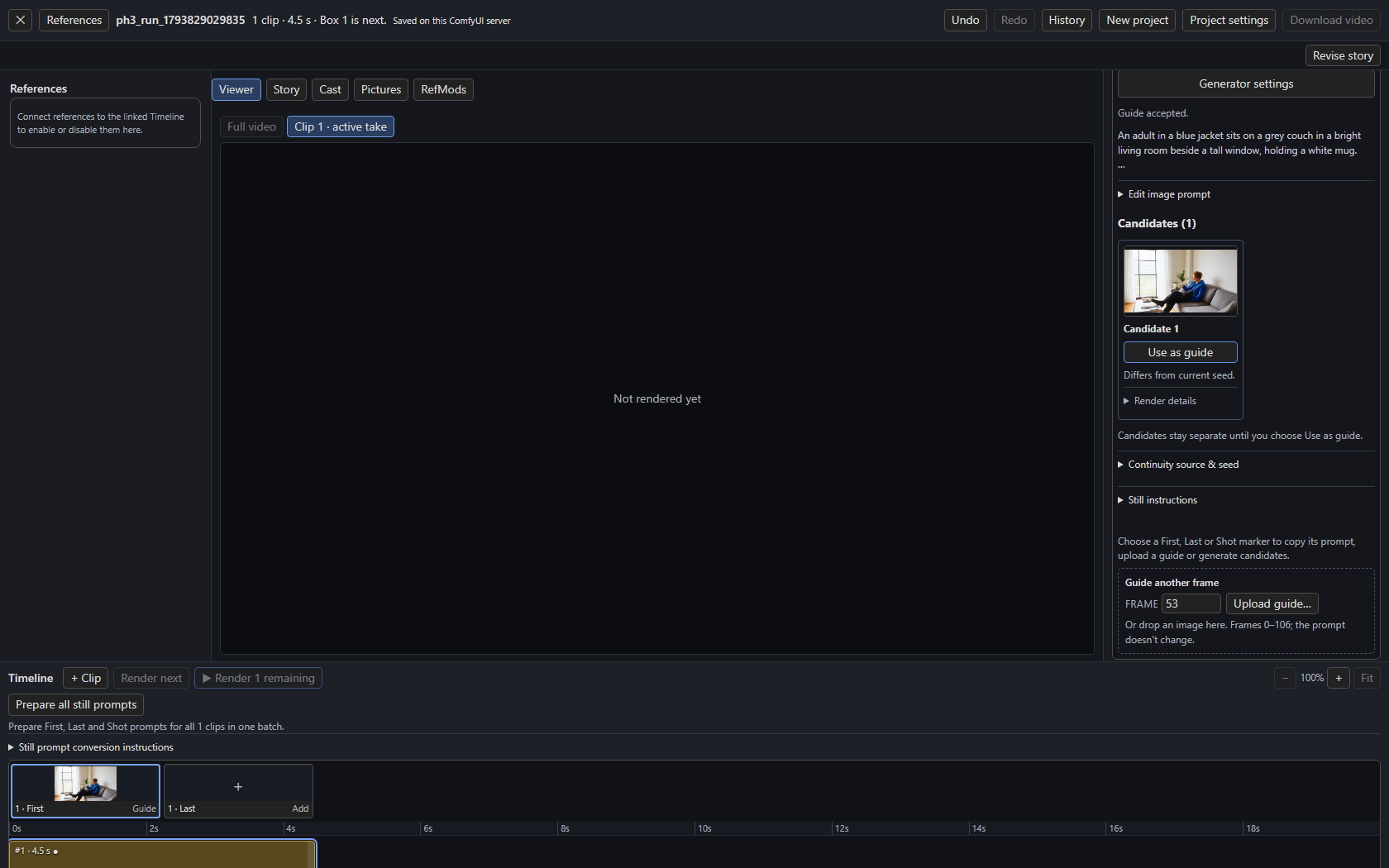
What it does with your clip
- First, with no references: plain text to image from the still prompt, at the size and seed the Studio shows.
- With references (an accepted scene anchor, the previous guide, Cast pictures): they are passed as
<Picture 1>,<Picture 2>and so on, up to 8. Native P-H3 conditioning scales the original reference images; the Studio does not shrink and pad a character sheet to the output canvas. Known Cast roles, picture titles and saved descriptions accompany each reference. The Studio puts a known scene or location first, because P-H3-Image treats<Picture 1>as the image it edits. Without semantic roles, titles remain context; the Studio does not guess a picture's role from its filename. Candidates show the executed prompt and reference roles under Render details. - Sizes must be multiples of 32. P-H3 works best near 8 megapixels; 4 MP edits use less memory but can lose fine detail. A 3:4 portrait uses 2496 × 3360 at 8 MP or 1760 × 2368 at 4 MP. Extreme aspects stay within 256–8192 pixels per side, which can reduce the pixel count. Earlier examples on this page used smaller canvases; those are not quality recommendations.
- Imported native video prompts without an authored opening or ending snapshot need Prepare all still prompts, or a manually entered still prompt. A walking sequence is not silently sent as a First or Last still. Prepared prompts and manual edits remain intact. Authored snapshots retain their subject definitions, scene style and logical reference names.
- Prompt upsampler is off by default. The Studio's Prepare all still prompts already writes long prompts, and the upsampler adds a model load. Select an upsampler file in the node to expand short prompts instead; it is not available together with reference images yet.
Story and Prepare all still prompts tailor their image instructions to P-H3-Image when this node is selected, including through the still-generator switch. Prepared prompts name the requested image medium, describe one concrete instant with framing and directional light, and make reference edits explicit about what stays and changes. They avoid hype words and excessive length, and quote exact requested lettering. Saved prose keeps logical @imageN references; the Studio assigns <Picture N> labels at generation time. The still converter uses this guidance even when Story also writes H3 video. Existing saved prompts and edited conversion instructions stay editable; regenerate prepared prompts to use the new guidance.
These instructions follow Pruna's P-H3-Image prompting and editing guide.
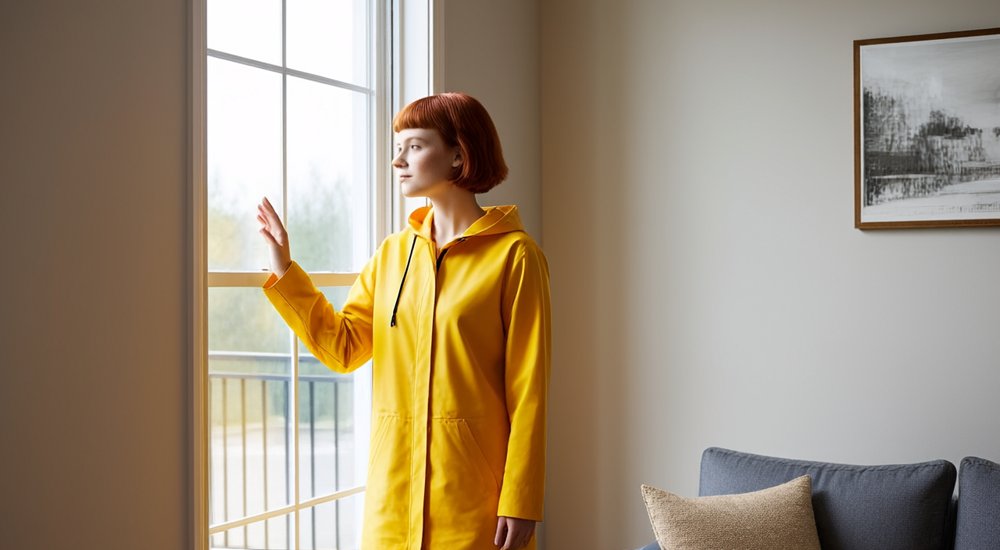
The picture above came from two reference pictures, a living room as <Picture 1> and a portrait as <Picture 2>, and the prompt "the young woman from Picture 2 stands by the window". It kept the room's window, couch and framed picture and the person's hair and coat. As with other generators, inspect each candidate; references guide the image but do not guarantee geometry.
Checks and messages
Nothing is checked when the Timeline renders a video: a still generator that is not asked for never runs and never loads a model. When a still is requested, the node checks before loading anything and says what to fix:
| Problem | Message names |
|---|---|
| A component file is missing | the component, the folder, an example file name and the Hugging Face repository |
The selected file is not a p-h3-image file |
the installed files you can choose |
| ComfyUI too old | the missing core nodes and the version to update to |
| Width or height not a multiple of 32, or under 256 | the value |
| More than 8 reference pictures | how many were sent |
Other generators
P-H3-Image Still is one ready-made generator. Qwen Image and any other native graph still connect through the Still Recipe node, as described in First and last frames.