Timeline and clips
The Timeline is a list of clips. Each clip is one H3 generation with its own prompt, seed, length and join. The strip along the bottom of the Studio is where you arrange them.

Add, resize and arrange
| To | Do this |
|---|---|
| Add a clip | + Clip in the Timeline toolbar, or drag after the last clip on the track to draw one. |
| Resize a clip | Drag its right edge. Lengths snap to H3's frame grid (see below), unless the clip uses Exact length. |
| Select a clip | Click it. The right-hand panel and the Viewer follow. |
| Move, copy or delete | Clip N actions in the panel: move earlier or later, Duplicate (the copy gets a new seed) or Delete. |
| Split a clip | A clip whose prompt has more than one [Shot N] offers Split before Shot N in its Shots tab. It turns that shot boundary into two clips; each half keeps the references it uses and the accepted guide moves with its shot. A bridge before the clip stays with the first half. |
H3's frame grid
H3 generates at 24 fps, in lengths of 17k + 5 frames for a clip that starts fresh (at least 22) and 17k new frames for a clip that continues the one before (at least 17). Without Exact length, every clip snaps to that grid. The default maximum is 362 frames; see Long clips to raise it.
Join with the previous clip
Open a clip's Settings tab.
- Continue (both Cut and New scene off): the clip carries the previous clip's last frames,
context_framesof them, as native H3 context, so motion and sound continue. - Cut: a new camera angle in the same place. No frames are carried, but with visual memory the clip can still remember the scene.
- New scene: a cut to a different place, time or look. It starts a new scene for visual memory.
- On a Timeline with a Story bible, a Join selector (Continue, Transition, Cut, New scene) replaces the two switches.
A bridge is a generated move between two rendered clips; see Joins and bridges.
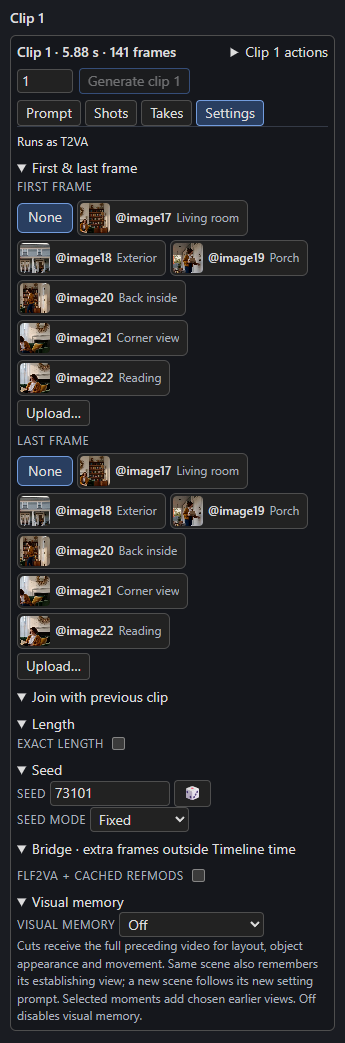
The Settings tab, section by section
First & last frame : Pick a picture as the clip's first or last frame, or Upload… one. See First and last frames.
Join with previous clip : The Cut and New scene switches described above.
Length : The clip's length, with the Exact length switch for frame-exact edits.
Seed : The clip's seed, a button for a new random seed, and a Seed mode. The seed belongs to the clip, so changing it renders only that clip again.
Bridge · extra frames outside Timeline time : Insert bridge, shown on a join that cuts. See Joins and bridges.
FLF2VA + cached RefMods : An experimental per-clip switch that converts first, last and reference images into reusable RefMods. It is off by default. Use it only with the matching example workflow.
Visual memory : Which earlier moments this clip is shown. See Visual memory.
Rendering
| Button | Renders |
|---|---|
| Render next | The next clip that is not current, or once every clip is current, the next bridge. |
| ▶ Render N remaining | Every clip that is not current, in Timeline order, then every bridge that needs a render. |
| Generate clip N | Only that clip. The number beside it sets how many takes to render (1 to 10), each with a new seed. |
ComfyUI's Run button also works: each queued run renders the next clip that needs it.
A clip is current when its saved render still matches its prompt, seed, length, join, pictures, memory and the node's settings. Change any of those and the clip needs a render again; the Timeline says why when you point at it. A clip that continues another also needs a render when the clip before it renders again.
Re-rendering one clip
Generate clip N renders only that clip, with its saved neighbours as anchors. Re-rendering can put later clips that continue it, or remember frames from it, out of date; the Timeline marks them and says why, and nothing renders again until you ask.
Where files go
Renders are written to output/h3_sequences/<name>/: one MP4, one latent file (.safetensors) and a last-frame PNG per clip, a manifest, the full video, and a takes/ folder for earlier renders. Keep the folder together; the latents are what let a later clip continue exactly.
Status you can read
The head of the Studio reads like 6 clips · 30.8 s · 1 bridge, +1.9 s · All 6 boxes are rendered. The +1.9 s is the time bridges add to the full video only; the Timeline's own time, audio lanes and timed text do not include it.