The Studio tour
Press Open Studio on the Timeline (or Story) node. The Studio fills the window; ✕ at the top left closes it and returns to the graph. Esc also closes it.
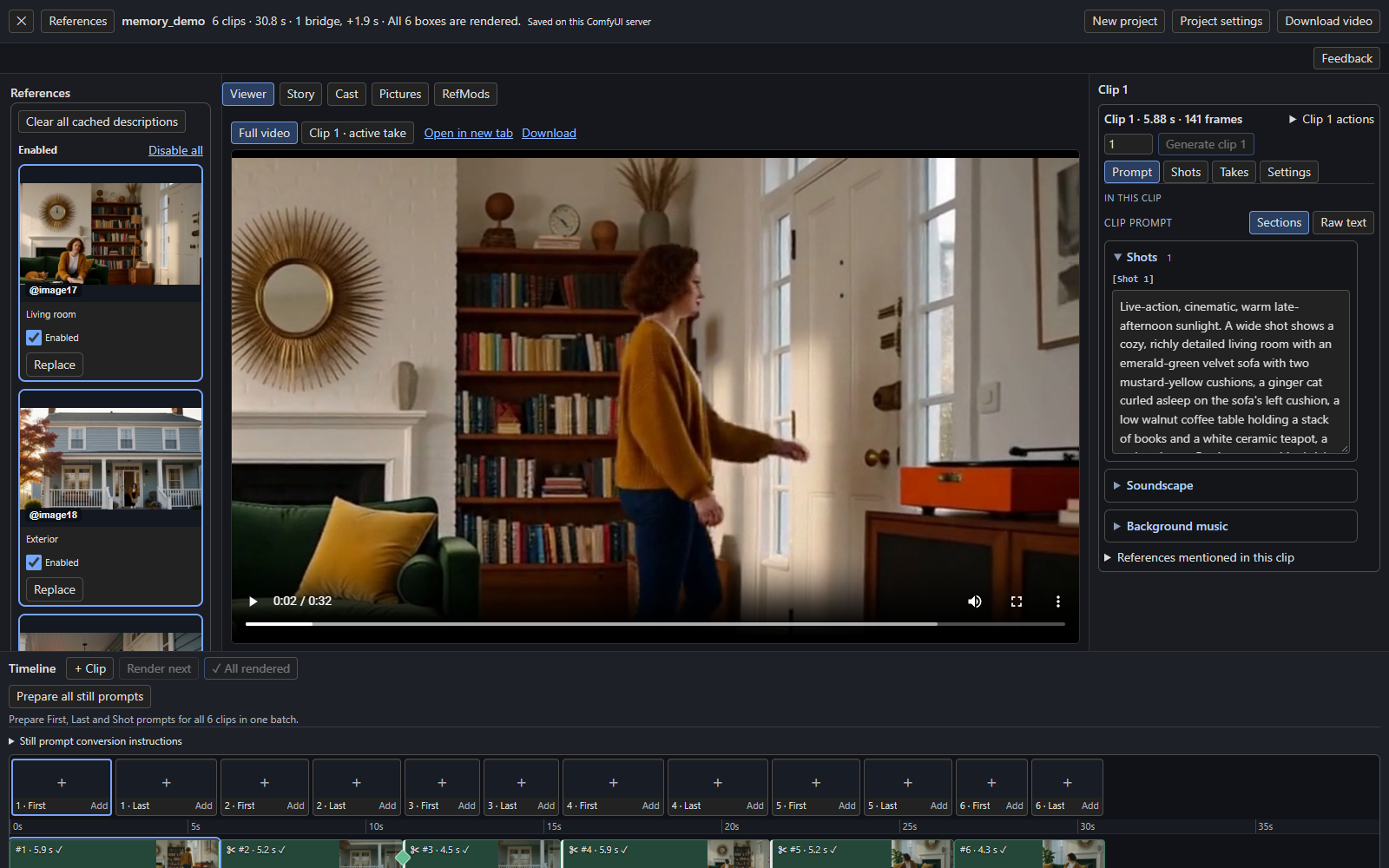
Top bar
| Control | What it does |
|---|---|
| ✕ | Close the Studio. |
| References | Show or hide the left-hand references column. |
| Project name and status | The sequence name, the clip count and length, bridges and the render state ("All 6 boxes are rendered."). |
| New project | Start a fresh project in this workflow. See Full video and projects. |
| Project settings | Shared prompt, and export or import of the project. |
| Download video | Save the full video (enabled once every clip is rendered). |
| Feedback | Open the Story page at its feedback field to patch a written story. |
Left: References
Every picture the Timeline knows about, with its @imageN name, a thumbnail, an Enabled switch and Replace. Turn a picture off and H3 no longer sees it. Details in References and pictures.
Centre: pages
| Page | Use it to |
|---|---|
| Viewer | Play the Full video or a single clip's take. Open in new tab and Download are next to the switch. |
| Story | Write the story: idea, template, scope, advanced model settings and feedback. |
| Cast | Build and edit the Story bible: characters, places, props and looks. |
| Pictures | Upload pictures into the Timeline. |
| RefMods | Manage reusable reference modifiers. See the note below. |
RefMods
RefMods are references stored as encoded H3 conditioning instead of pixels. The RefMods page lists them and needs the companion ComfyUI-MiniMaxH3Mod node pack (its numbered RefMod encoder); without it the page says to install it. They share the Timeline's reference slots, and a Timeline picture cannot take a RefMod's slot. This guide does not cover RefMods in depth.
Right: the clip panel
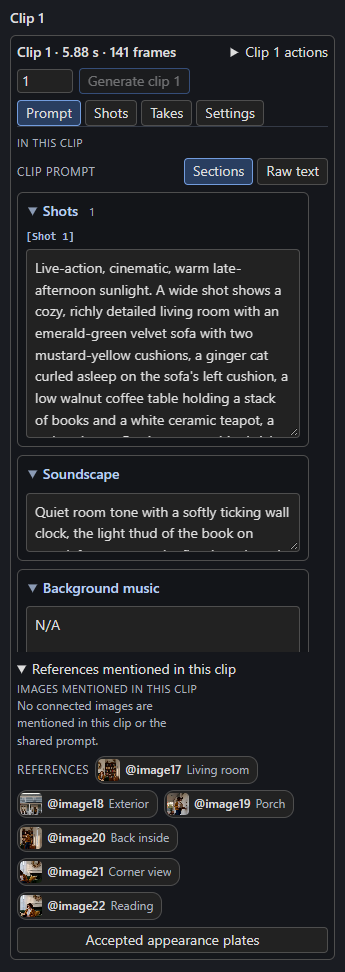
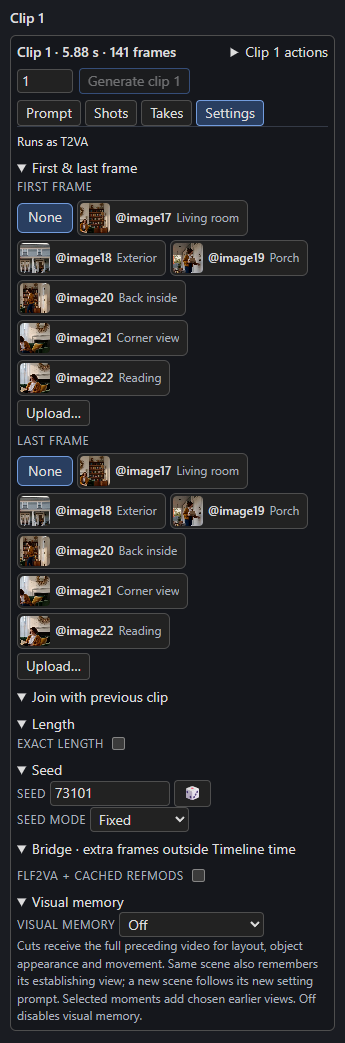
The panel follows the selected clip. Its header shows the clip number, length and frame count, a Clip N actions menu (move earlier or later, Duplicate, Delete), the number of takes to make and Generate clip N.
| Tab | Contents |
|---|---|
| Prompt | The clip's prompt as Sections or Raw text, plus the references it mentions. See Writing prompts. |
| Shots | The First, Last and timed-shot guide images. See First and last frames. |
| Takes | The continuity check and saved takes. See Takes and The continuity check. |
| Settings | First and last frame, join, length, seed, bridge and visual memory. See Timeline and clips. |
Bottom: the Timeline

From top to bottom: the toolbar (+ Clip, Render next, Render N remaining, Prepare all still prompts), a First and Last marker for each clip, the time ruler, the clip track, an AUDIO lane and a TEXT lane.
- Each clip shows its number, length and render state (a ✓ once rendered, a thumbnail of its last frame).
- A ✂ marks a clip that cuts. The green diamond on a join is a bridge.
- Drag a clip's right edge to resize it, or drag after the last clip to draw a new one. Click a clip to edit it.
- + Audio and + Text add audio and timed text.
Undo
ComfyUI's Ctrl+Z and Ctrl+Y (or Ctrl+Shift+Z) work while the Studio is open, except inside a text field, where Ctrl+Z undoes your typing. Cast edits, take switches and writer results each undo as one step.