Audio lanes
Place music, ambience and voice on audio lanes above the clips. H3 hears the part of each lane that covers a clip as a native audio reference, and you can optionally have the final video play your original recording instead of H3's generated audio.
Add audio
In the Studio's Timeline, press + Audio or drop an audio file on the AUDIO lane. Long files keep their original duration; the initial window fits the video when clips already exist.

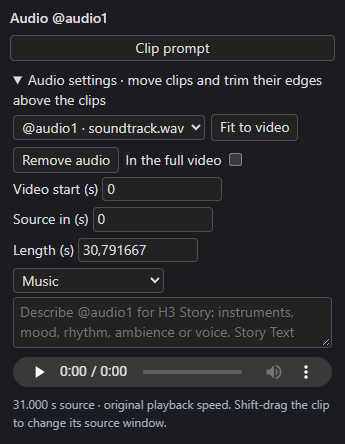
- Move the clip to align it; trim either edge; Fit to video snaps it to the video. Playback speed never changes.
- Shift-drag selects a different source window without moving the clip.
- The settings give exact Video start (s), Source in (s) and Length (s), and an audition player.
- Choose Music, Overall soundscape or Shot audio / voice, then describe the sound for the Story writer.
You can also connect Text to descriptions.audio1…audio3 on the Story node; Story text takes precedence over the lane's own description. Write uses the descriptions in H3's matching audio sections and keeps the reference binding.
How H3 hears it
Connect an audio VAE to the Timeline. Each covered clip receives the matching audio window as a native reference, and continuing clips include the replayed audio context so the reference follows the generated clip clock. Uncovered parts of a clip are silent in that reference; audio outside its placed interval is excluded. A short source is padded, never stretched or looped.
There are three audio slots, shared with connected audio references and audio RefMods. A Load Audio file can be placed directly; for computed audio, upload its source file to create a draggable lane. A character's voice clip has a slot of its own from @audio4 up.
Placement, trim, waveform and descriptions persist with the Timeline. Uploaded files remain in input/h3_audio.
Moving audio re-renders
Moving or trimming a clip that H3 hears makes the clips it covers need a render again.
In the full video
H3 generates from the reference and prompt. To hear the uploaded file itself in the final video, tick In the full video in the clip's settings. It is off by default, and a clip from a connected Load Audio node needs its file uploaded first.
With at least one clip ticked, the full video plays only the ticked clips:
- each plays the source window its lane shows, from its video start, at original speed;
- overlapping clips add up, held within full scale;
- the video is silent where no ticked clip plays, and a clip past the last frame is cut there;
- the sample rate is the first ticked clip's (in slot order) and the audio is stereo if any ticked clip is;
- there are no fades.
The full video rebuilds on its own a moment after a ticked clip changes, with nothing re-rendered, and the Full video view names the clips it plays. Ticking never puts a rendered clip out of date. If a ticked clip's file is missing the full video isn't rebuilt and the Studio names the file. Clip and bridge takes keep H3's audio, and unticking every clip brings H3's audio back. With bridges, a ticked clip starts with its clip after the bridges before it, then plays straight through.