Cast and the Story bible
The Story bible is the Timeline's list of characters, places and props. Each entity has a name, a kind, its pictures, a description and its looks over time; each clip records which of its subjects is which entity. It lives in the Timeline, so saving the workflow, Export and Import carry it. Rendering never reads it: the clip prompts are still what render. After rendering, the Story's Vision model can check each clip against it.
Build a bible
Open the Studio's Cast page. Until a bible exists it offers Build bible, which links each clip's subjects to entities without changing any prompt.
Build bible reads every <Subject N> is … line in the clips' subject_definitions, plus the linked Story's saved plan when that Story wrote this Timeline. It works without a plan and writes no prompt. Its summary reads like 3 entities from 4 boxes. Mara has 2 looks. Nothing that renders changed., followed by any line it left unlinked and why.
Prompt format
Build bible links <Subject N> is … lines such as <Subject 1> is a woman with short curly auburn hair in @image17., where the subject names a picture. A line the bible can't reproduce exactly is listed as unlinked with a reason instead of being rewritten. For example, the bundled memory demo's subject lines point at earlier video moments (<Video 1>) rather than pictures, so Build bible lists them as unlinked and changes nothing.
The Cast page
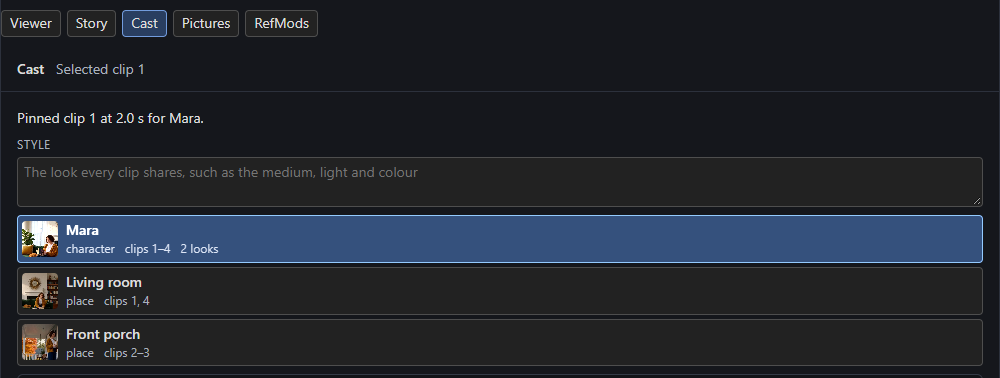
One row per entity shows its first picture, name and kind, the clips it appears in and its number of looks (plus, in amber, how many of its clips differ). Click a row to open the entity.
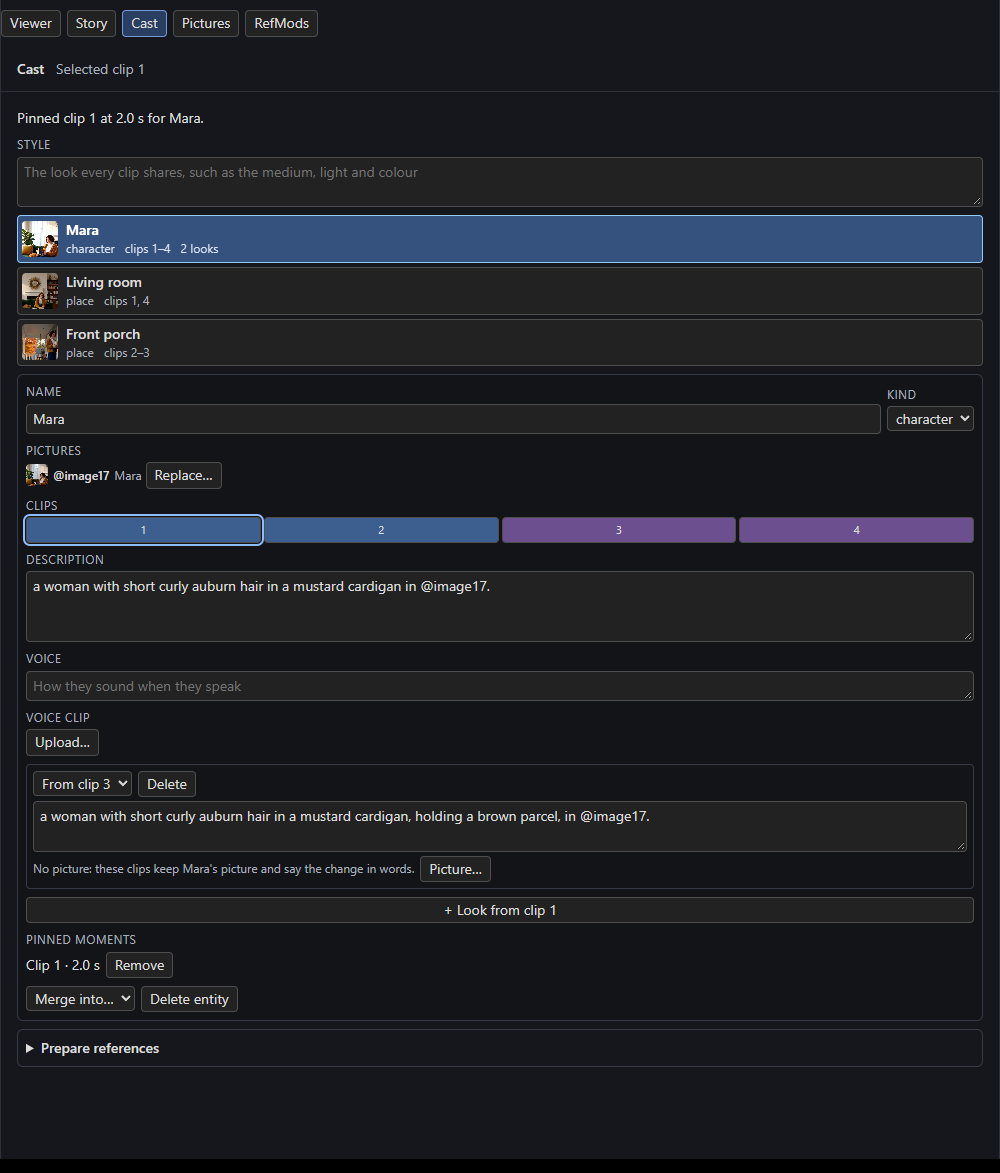
| Field | Does |
|---|---|
| Name, Kind | Character, place or prop. |
| Pictures | Replace… swaps a picture for another connected image or visual RefMod in the entity's wording and its clips' lines. Upload… adds a new one in the same edit. |
| Clips | One cell per clip, coloured by the look in force there. Amber = the clip differs; empty = the entity isn't linked. Click a cell to select that clip. |
| Description | Edit and press Apply (Esc cancels). It writes the new wording into every clip where the description is in force. |
| Voice | How the entity sounds, used by the writer. |
| Voice clip | See below. |
| Looks | A look applies from its clip until the next one. Each has its starting clip, its wording with Apply, Delete, and a Picture…. + Look from clip N starts a look at the selected clip. |
| Pinned moments | See Remembering the cast. |
| Merge into…, Delete entity | Merge links the entity's subjects to another entity; delete unlinks them and changes no prompt. |
The Style row above the list holds the look every clip shares. After each change a one-line note says what happened, for example Updated 6 boxes; box 6 differs and was left alone.
A look's picture
A look can have its own picture. When a character changes outfit, choose the picture showing the new outfit with the look's Picture…; None removes it. Every clip where that look is in force shows the picture instead of the entity's, and wording that named the old picture names the new one. A later look without a picture, such as soaked, keeps the picture in force and says the change in words.
Clips that differ
A linked subject differs when its line isn't the one the bible gives it, for example after you edit the Prompt tab or Write rewrites the clip. Bible edits leave differing lines alone. The entity lists each with three choices: Use the bible's wording, Make it a look from clip N, or Someone else… (link to another entity or a new one).
Chips on the Clip panel
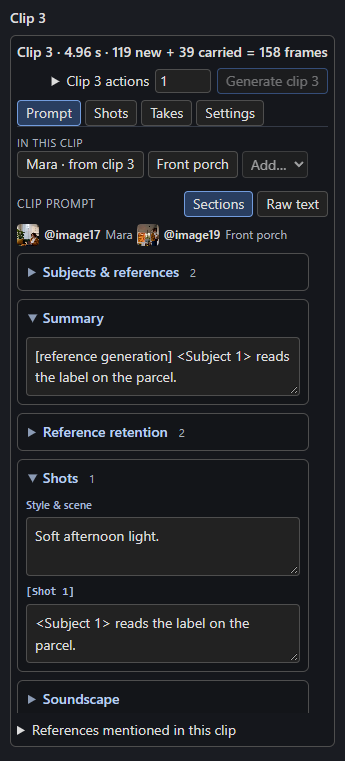
Above the Clip panel's tabs, chips list the selected clip's subjects: Mara · from clip 3 names the entity and the look in force; an amber chip differs; a grey Subject 3 · not linked chip offers Link…. Click a chip to open its entity. With a bible the chips show the clip's schedule: who is in it and where, with × to remove, Add… and Place.
Writing with the bible
Write uses the bible when the Timeline has one, and when it plans an empty Timeline it starts one. A Timeline with clips and no bible writes as before; build its bible first to write with it.
- Planning: the planner reads the bible and never changes its entities, though it may add characters, places and props the story needs, with a kind, description and voice. Each clip gets a schedule and a join. A schedule or join you saved is kept.
- Joins: with a bible, the Join selector replaces the Cut and New scene switches (Continue, Transition, Cut, New scene, with an optional note).
- The compiled prompt: the writer names entities by id, and code writes the prompt from the wording in force at that clip, so definitions, style and voices come from the bible. The writer's reply is kept as the clip's source.
- Priority: the Guide, then the idea, the bible, the clip's plan, the shot rules and last the general H3 guidance. A template ranks after everything you wrote.
- Looks: when the writer changes how an entity looks, the change becomes a look from that clip, with a note.
Cast edits after Write
While a clip's prompt is still what its source compiles to, every Cast edit compiles the whole clip again; shots, dialogue, sound and timing stay the writer's. A clip you edited by hand gets only a line-by-line update, and its chips start with Edited by hand and Recompile from source, which drops your edits.
A new wording can leave shot text that still describes the old look (a dry coat that is now soaked). The Cast page then offers Update prose with the writer, which sends only the affected clips and patches only the text the new wording contradicts. It runs like Story feedback, and either every patch lands or none does.
Voice clips
A character can have a voice clip: a recording H3 hears in clips where that character speaks, so the voice stays the same from clip to clip. On the Cast page open the character and press Upload… in its Voice clip row (or drop an audio file on the row). The file goes to input/h3_audio, and the Timeline keeps it on a slot of its own from @audio4 up, so it doesn't use one of the three standard audio slots except in clips where it is sent.
- The row shows the file and its length with Play, Upload… and Remove. H3 hears the whole file each time, so a short sample costs less memory and time (a note appears above 30 s).
- A clip written from the bible sends the clip when the character has a line in it, voiceover included. Unnamed speakers never get a clip. Places and props have none.
- The voices take what is left of H3's three audios after the lane clips and mentioned audios; one that doesn't fit is left out with a note.
- Rendering such a clip needs an audio VAE connected to the Timeline, or it stops with connect an audio VAE to Timeline.
- A voice clip never plays in the full video.
Remember the cast
With a bible, a clip's Visual memory can be Cast: it shows H3 earlier moments of what its pictures don't show (each scheduled character as they look now, and the place).
Pins choose the moment: play a clip's take in the Studio, pause where a character or place shows well, and press Pin moment for… beside Open in new tab and Download. Buttons for the clip's scheduled characters and place appear; choose one and the Cast page notes it, for example Pinned clip 1 at 2.0 s for Mara. Each entity lists its Pinned moments, newest first, with Remove. The button shows only on a clip's current take. A pin is a Cast edit, so Ctrl+Z undoes it.
A Cast clip remembers, in order and up to three moments in total: each scheduled character that no picture in the clip shows as they look now (the latest pin since their current look began, otherwise the middle of their last shot in the first clip of that look), then the place (unless the clip continues the clip before at the same place). A moment is remembered once and only moments from the current look count, so a look change drops the older ones. A clip needs a render again when its moments change or a clip it remembers renders again.
Undo
Each Cast change, Build bible included, is one step of ComfyUI's Undo (Ctrl+Z): it reverts the bible, the prompts and the links together. Ctrl+Y redoes. A prose update or Story feedback is undone with the Story's Undo.
Prepare references
The optional Prepare references section creates reviewable image candidates for characters, scheduled looks, locations and arbitrary objects with a native still generator. See First and last frames.