References and pictures
H3 Timeline accepts the same reference media groups as ComfyUI's native MiniMax H3 Reference to Video node, and adds pictures that live inside the Timeline itself.
Connected references
| Timeline input | Native input | Mention in a prompt | Meaning |
|---|---|---|---|
images.imageN |
ref_images |
@imageN |
Image reference; up to 9 are selected per clip. |
videos.video1–video3 |
ref_videos |
@video1 |
A video's frames, at 24 fps. |
video_audios.video_audio1–3 |
ref_video_audios |
@video_audio1 |
The soundtrack paired with the same-numbered video. |
audios.audio1–audio3 |
ref_audios |
@audio1 |
A standalone audio reference. |
Connect a video loader's frame batch to video1 and its audio to video_audio1. A loader that returns a ComfyUI VIDEO object needs Get Video Components first to obtain the IMAGE frames and AUDIO. Supply frames at 24 fps, as the native node requires.
The Timeline also exposes IMAGE outputs image_1, image_2… that match the selected clip's final native <Picture 1>, <Picture 2> order, including uploaded pictures, replacements and accepted guides. They are useful for feeding a still generator or an upscaler.
The References pane
The Studio's left column lists every reference with its @imageN name.
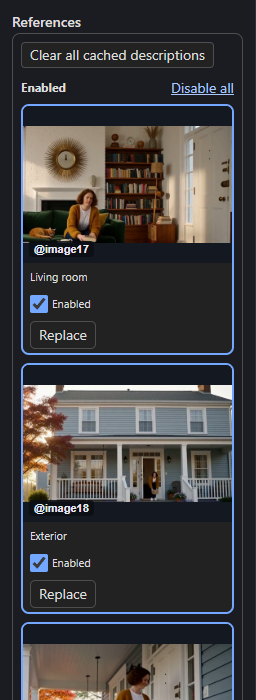
- Enabled references are above Disabled ones. Use Disable all or Enable all.
- Click a thumbnail to preview it. Each reference has an Enabled switch and Replace.
- Replace swaps in any available reference of the same type, including disabled ones. Prompt mentions, frame assignments and Cast picture choices follow the swap, and the whole switch undoes and redoes.
- Clear all cached descriptions forgets the writer's cached descriptions of your pictures.
- Hide the pane with the top bar's References button when you want the full width.
Pictures saved in the Timeline
Wired inputs need a Load Image node. For most work, upload pictures into the Timeline instead.
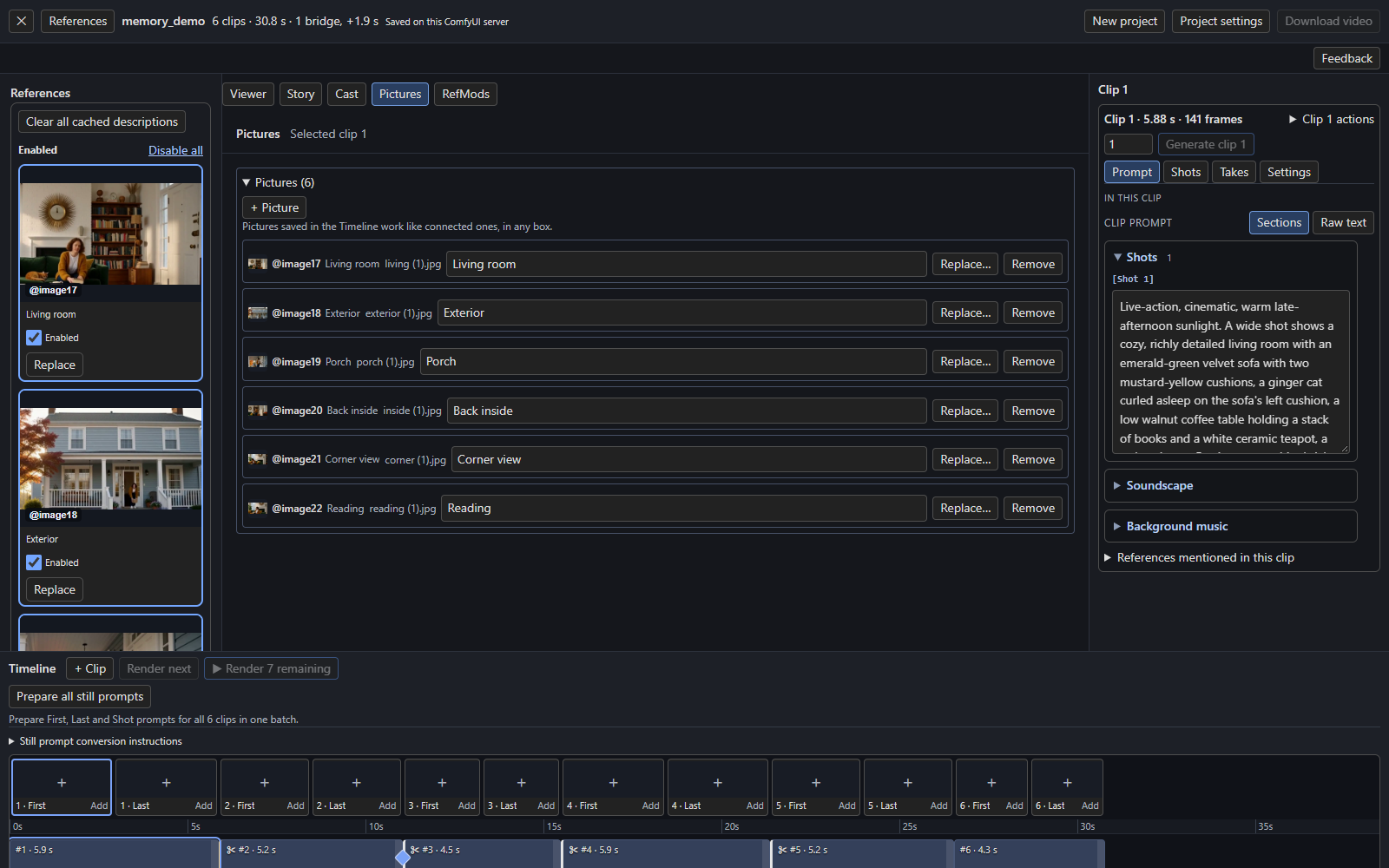
- Open Pictures (centre tabs) and press + Picture. Pick one or more files.
- They take the next free slots from
@image17up, after the node's 16 wired inputs, in file-name order, with no upper limit. - Give each a Title. It replaces the file name everywhere, and the Story writer uses it as the reference's name.
Use them exactly like connected pictures: mention them in any prompt, choose them as a clip's first or last frame, give them to Cast entities and looks. Enabled references can turn them off, and with more than 12 pictures the pickers show a Filter pictures field.
| Action | Result |
|---|---|
| Replace… | Uploads another file into the same slot and keeps its title. Every mention and frame shows the new file; clips that use it need a render again. |
| Remove | Takes the picture out at once and names the clips that used it. Their mentions show as missing. Undo brings it back. |
| Upload… under a clip's First or Last frame | Adds a picture and makes it that clip's frame in one step. |
| Upload… in Cast | Adds a picture and uses it in the same Cast edit. If the edit fails, the picture is taken out again. |
A new picture never takes a slot the Timeline still names. When a clip renders, only the pictures that clip uses are loaded, with ComfyUI's own Load Image code, so a Timeline picture renders exactly like the same file on a wired node. A clip that uses a picture whose file is gone stops with a message naming the clip, the picture and the file; a picture no clip uses never stops a render.
Where files live
Uploaded pictures are stored in ComfyUI's input/h3_pictures; uploading the same file again reuses it. Exports keep file references rather than embedding the images, so moving a Timeline to another computer needs those files, just as it does for wired pictures.
RefMods
RefMods are references saved as encoded H3 conditioning rather than as pixels. They need the companion ComfyUI-MiniMaxH3Mod pack and take their own slots. A Timeline picture cannot occupy a RefMod's slot.