First and last frames
A guide is a still image that pins part of a clip: its First frame, its Last frame, or a timed Shot. You can use a picture you already have, upload one, or generate candidates with a still generator and accept the one you like.
Choose a picture you already have
In a clip's Settings tab, First & last frame lists every picture. Click one under First frame or Last frame, or choose None. Upload… adds a new picture and uses it in one step. See References and pictures.
The Shots tab and the markers
Above the Timeline, every clip has a First and a Last marker, and a clip with several shots has one per shot. Click a marker (or press Enter or Space on it) to open its panel in the clip's Shots tab.
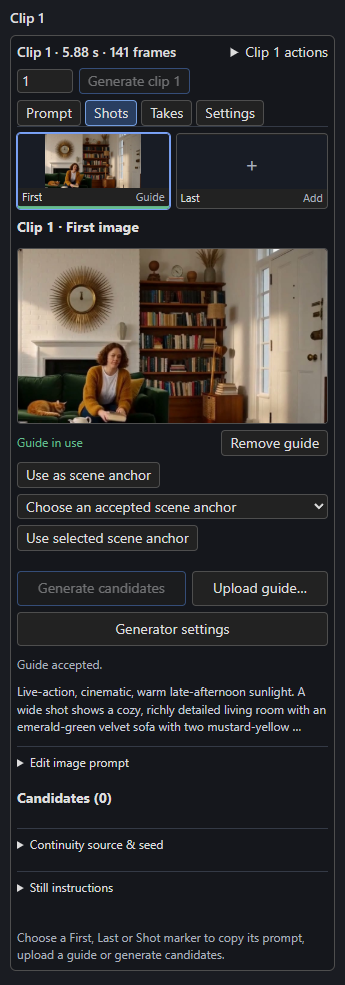
The panel offers:
| Control | Does |
|---|---|
| Upload guide… | Accepts a local image as this marker's guide. |
| Generate candidates | Asks the connected still generator for images (see below). Candidates stay candidates until you accept one. |
| Generator settings | Selects and centres the connected generator's node group in the graph so you can edit models, steps or sampler. |
| Edit image prompt | The still prompt, which explicitly describes a single opening frame (First, Shot) or the ending frame (Last). Rebuild prompt recomposes it from the scene text, instruction and extra details. |
| Continuity source & seed | Which video take or earlier accepted guide the new image should follow, and the Image seed. |
| Still instructions | The reusable instruction used for stills. |
| Candidates (N) | Each candidate keeps its prompt, exact seed and source. Accept guide assigns it; click a thumbnail for a large preview (Esc closes). |
| Remove guide | Removes the assignment. The image stays in your candidates. |
After you accept a guide the panel reads Guide in use. A guide never changes a render until you accept it.
Generating candidates
Still generation needs a still recipe: connect a native image-generator subgraph's IMAGE output to the Still Recipe node, and that node's output to the Timeline's still_recipe input. The example workflows include ready-made recipes:
| Example workflow | Image generator |
|---|---|
examples/h3_timeline_fizgig_still.json and examples/h3_fizgig_still.json |
H3 with the Fizgig still recipe (stock Ref2VA weights, 3872 × 2176, er_sde, 50 steps). |
examples/qwen_story_studio.json |
Qwen Image 2.1, the default base generator. |
examples/qwen_story_studio_turbo.json |
Qwen Image 2.1 Turbo, the faster alternative. |
examples/h3_story_studio_qwen_references.json |
H3 video with Qwen images attached. |
Select models you have installed; nothing is downloaded. Other pixel generators can be connected by declaring where their prompt, seed, size and reference inputs are. This is the Still Recipe node's bindings input; see the Qwen Story Studio notes in the repository for the schema.
Which prompt is used
When you generate through the Timeline, the final prompt in the panel replaces the still subgraph's own prompt for that one request. The subgraph's prompt is used only when you run it standalone.
Continuity between stills
- The first accepted First image becomes the scene anchor. Later requests receive that anchor, the preceding accepted guide (or a delivered video frame you choose) and the references the prompt mentions.
- Use as scene anchor promotes the current accepted image; Choose an accepted scene anchor then Use selected scene anchor reuses an anchor from another scene when you return to a place.
- A camera cut keeps the anchor; a new scene starts another one. Changing an anchor marks dependent candidates as out of date.
- Without a chosen video take, accept First first, then Shot and Last in order: each new candidate receives the preceding accepted guide.
- Continuity needs no extra models, but it cannot guarantee that the generator obeys it. Inspect every candidate.
Prepare all still prompts
Prepare all still prompts (in the Timeline toolbar) uses the connected Story writer to write a richer still prompt for every First, Last and Shot target in one explicit batch. Edit Still prompt conversion instructions to steer it. Results describe subject and visible state, setting and layout, style and materials, lighting, colour palette, and camera and composition. Choose Use prepared prompt for one target or Use prepared prompts for all targets to apply them as one undoable step. Preparation is manual: when your clips or references change, Still prompts are out of date appears with a Regenerate all still prompts action; image generation never calls the converter by itself.
How guides meet neighbouring clips
- On an unrendered Continue join, accepting clip B's First image assigns the same image to clip A's Last and clip B's First.
- If either neighbour has rendered material, accepting a replacement at B's First sets B to Cut and leaves A alone.
- When a verified saved predecessor ending exists, the First panel offers Use saved predecessor ending, which reuses that exact ending and restores Continue.
- Last targets the last delivered frame, including exact-length trimming. Guides can use individual frames, not just the 17-frame grid.
Optional reusable images for Cast
The Prepare references section on the Cast page creates reviewable candidates for characters, scheduled appearances, locations and props before you generate First, Last or Shot images. The three generation switches start off and are independent.
Experimental geometry
Reference delivery does not establish exact reconstructed geometry. The Qwen presets only partly followed a requested 45° camera change in testing, so treat arbitrary-view geometry as experimental and accept only candidates you have inspected.