Writing prompts
Each clip has its own prompt. Open a clip and use the Prompt tab in the right-hand panel.
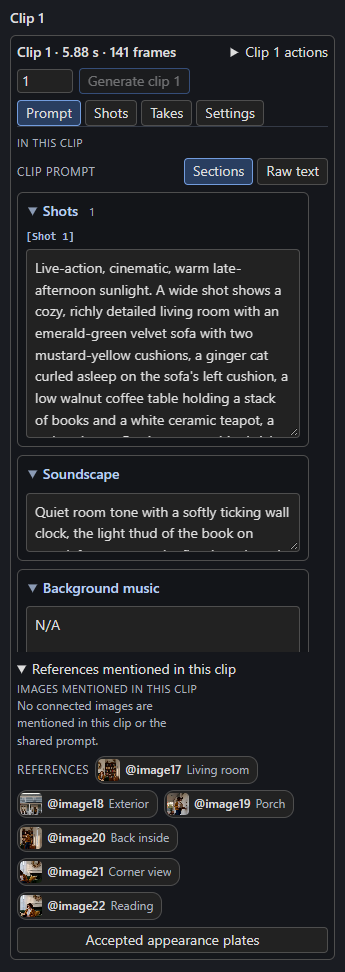
Sections or raw text
Sections splits H3's structured prompt into labelled boxes you can edit one at a time:
- Shots: the visible action, with one
[Shot N]entry per distinct stage or view. - Soundscape: sound in the scene (the prompt's
overall_soundscape). - Background music: audience-only music, or
N/A(the prompt'snon_diegetic_music). - For reference-based clips, Subjects & references, Summary and Reference retention also appear.
Raw text shows the whole prompt as one text field, for pasting in a prompt you wrote elsewhere or for edits that cross sections. Both views edit the same text, and native H3 prompts are accepted directly: the Story writer is optional.
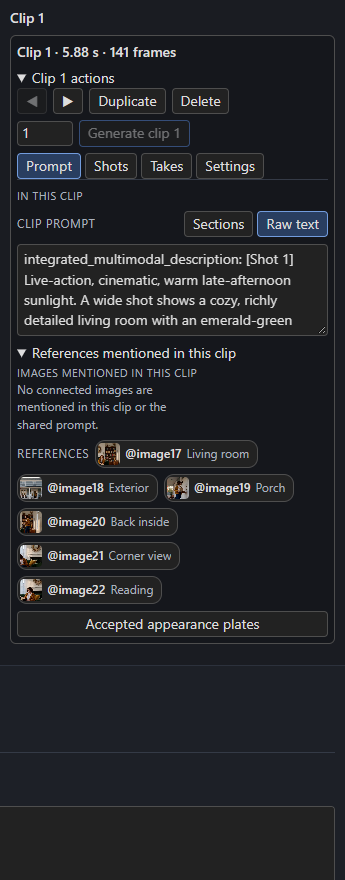
Native H3 prompt structure
The demo project's prompts are written in H3's structured style: an integrated_multimodal_description: with one or more [Shot N] stages, then overall_soundscape: and non_diegetic_music:. Dialogue goes in <d>…</d>. If the optional MiniMax guides are installed, the Timeline's instruction bundle carries them; otherwise follow the official MiniMax H3 documentation.
Mention references with @
Refer to a connected or uploaded reference in the prompt as @image1, @video1, @video_audio1 or @audio1; the placeholder in an empty prompt reminds you. Under References mentioned in this clip, every reference appears as a chip with its thumbnail and name. Click a chip to insert its mention at the cursor.
Mentions turn into H3's native reference tags when the clip is prepared. A reference that is disabled (or not connected) is not sent to H3, and its mentions read as a plain description of the subject or sound instead of a reference. See References and pictures.
The shared prompt
Project settings → Shared prompt is text added before every clip's prompt: a place to say the style, the setting, or who @image1 is once. It applies to every clip, including any bridge.
Effective prompt
Under the Prompt tab, Effective H3 prompt and text window (when timed text is attached) shows the final prompt with references rewritten and the projected lettering window. For still guides, H3 conditioning prompt under a candidate shows exactly what the still generator received. Use these to check what the model will actually see.
Shots inside a clip
A clip can hold several [Shot N] stages, each with its own timing. A single simple action needs only one. Split before Shot N (on the Shots tab) turns a shot boundary into two clips. The Story writer prefers short, independently editable clips, even for a continuous take; for example a 15 s take might be written as 2 + 3 + 4 + 4 + 2 s clips that each continue the last. This is a default, not a rule. You can draw clips of any length.
Writing for continuity
- Name the camera move and its speed when it matters. Quiet holds and static framing are valid.
- Give each distinct action its own
[Shot N]so it gets its own time. - For a Continue clip, start from the pose and motion the previous clip actually ended in. The Timeline carries the previous latent, and also uses the previous clip's saved last image as a guide at the first new frame so the pose does not reset.
- Keep adjacent stages mechanically compatible: a turn, a gaze change or a step needs playable time.
Text cannot guarantee pixels
For exact prop counts or strict start and end poses, inspect and accept first and last frame guides before rendering. A matching first frame alone does not establish smooth motion in the frames after it.